Branches
A branch represents a physical location (store, showroom, sales warehouse...) with its own stock and accounts inside your account. All sales and inventory data is scoped to whichever branch is currently selected in the top bar.
Go to Branches, Users & Security → Branches → Create.
Basic Information
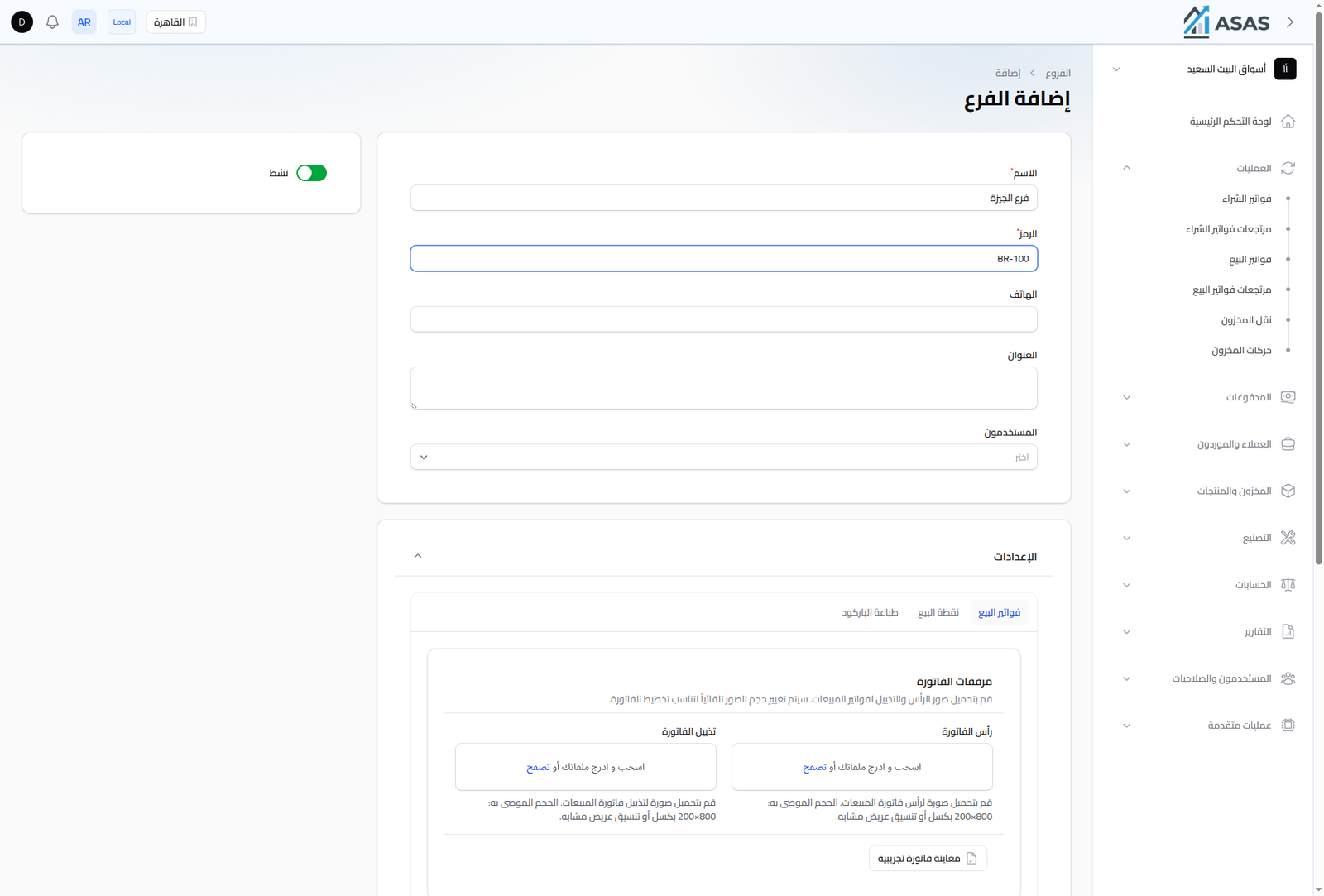
- Active: inactive branches disappear from the branch-switcher list.
- Name: the branch's name (required).
- Code: a short code used to identify the branch in reports and documents (required).
- Phone and Address: optional fields shown on printed invoices.
- Users: pick which users can access this branch.
Settings
The Settings section has three tabs specific to this branch:
Sales Invoices
- Invoice Attachments: upload a header/footer image for printed sales invoices (auto-resized).
- A Preview Sample Invoice button shows the final invoice layout before saving.
- Additional receipt text settings (branch/company name, invoice message, showing payment accounts, receipt footer text).
POS
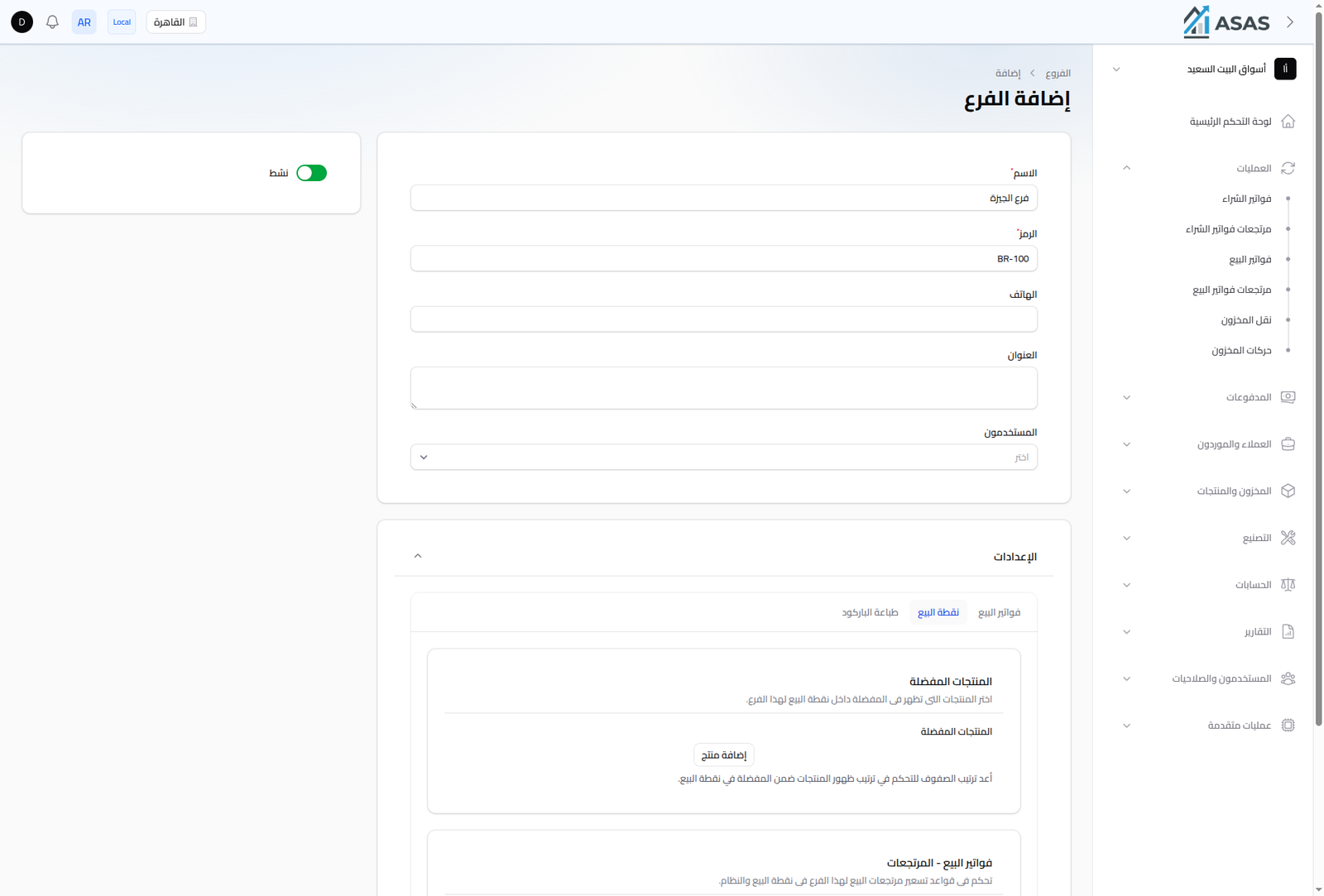
- Favorite Products: choose products that always show up in the POS product grid for this branch (useful for best-sellers), reorderable.
- Sales Returns: control the pricing rules for POS sales returns at this branch.
Barcode Printing
Label formatting options for this branch's barcode labels (size, content), with a sample preview before saving.
Notes
- Each branch is independent for: stock, stock movements, sales/purchase invoices, and the customer/supplier balances shown for it.
- Switch between branches from the top bar (see Navigating the Interface).