Creating a Product
This guide explains how to add a new product in ASAS, including product types, multiple units, variants, barcodes, and pricing.
Go to Inventory & Products → Products → Create, then fill in the form as described below.
1. Basic Information
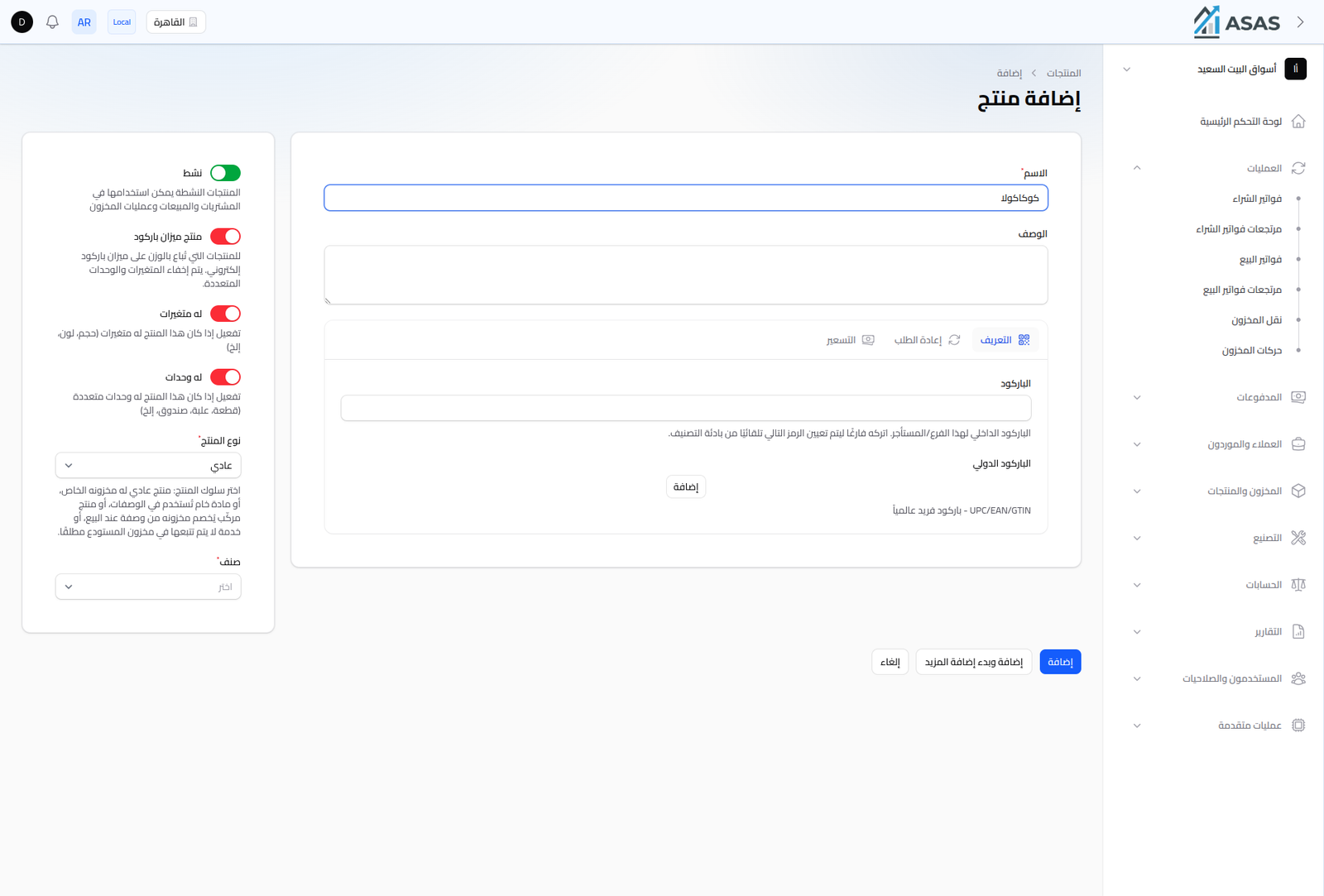
- Name: the product's name (required).
- Description: an optional description.
- Active: only active products can be used in purchases, sales, and inventory operations.
- Scale-Barcode Product: enable this for products sold by weight on an electronic scale. Enabling it automatically hides variants and multiple units (they can't be combined).
- Category: the category the product belongs to (required).
- Product Type: determines how the product behaves in the system:
- Normal — a product with its own stock (the default).
- Raw Material — used inside recipes, not sold directly.
- Composite — manufactured from a recipe; its stock is deducted from the recipe's components on sale.
- Service — never tracked in warehouse stock at all (e.g. maintenance services).
Note: use the Has Variants and Has Units toggles at the bottom-left of the form to define the product's structure. You can enable either one, both, or neither, depending on the product.
2. Simple Product: Identification & Pricing
If both Has Variants and Has Units are left off, the Identification and Pricing tabs appear directly at the product level.
Identification (Barcodes)
- Internal Barcode: auto-generated based on the category prefix if left blank; can also be edited manually.
- International Barcode: an expandable list for adding more than one global barcode (UPC/EAN/GTIN), with one marked as default.
Pricing
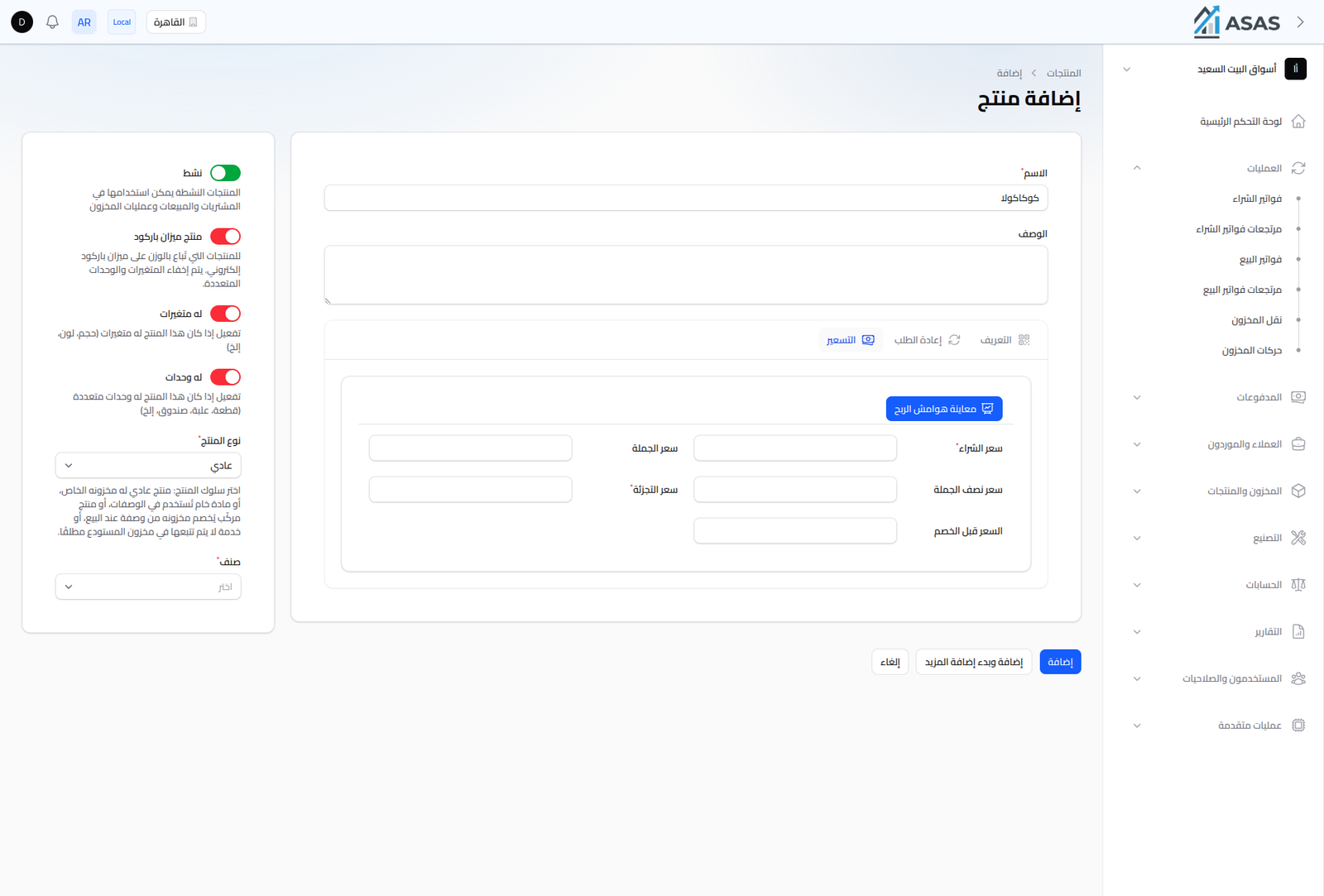
- Purchase Price: the cost price.
- Wholesale Price and Semi-Wholesale Price: bulk selling price tiers.
- Retail Price: the price charged to the end consumer.
- Price Before Sale: the original price shown struck through when there's a discount/promotion.
- Prices are tied to the current branch (a product can have different prices per branch).
- The View Profit Margins button shows the computed margin against each price tier.
Rule: Purchase Price ≤ Wholesale Price ≤ Semi-Wholesale Price ≤ Retail Price ≤ Price Before Sale.
3. Multi-Unit Products
Enable Has Units if the product is sold in more than one unit of measure (piece, box, carton...). The Units tab then replaces the product-level Identification and Pricing tabs.
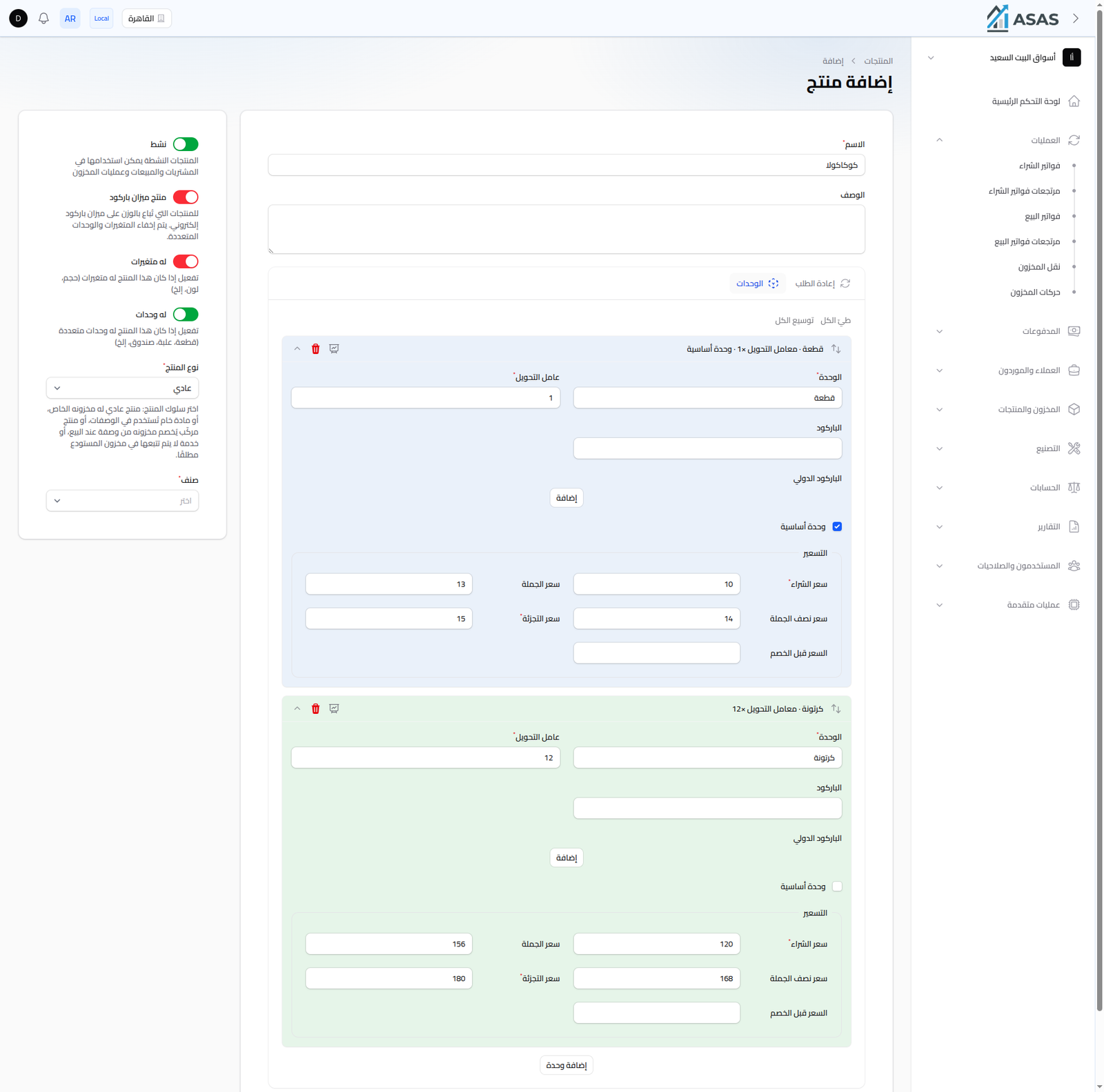
For each unit in the list:
- Unit: the unit's name (e.g. Piece, Carton).
- Conversion Factor: how many base units make up this unit (e.g. a carton = 12 pieces).
- Is Base Unit: exactly one unit must have a conversion factor of 1 and be marked as the base unit.
- Barcode: internal and international barcodes specific to this unit (every unit has its own).
- Pricing for this unit (same pricing fields as above). When you change the conversion factor, the screen auto-suggests prices by scaling the base unit's prices by that factor — you can still edit them manually.
Click Add Unit to add another row.
4. Multi-Variant Products
Enable Has Variants if the product has variants (e.g. size or color), each with its own barcode and price. The Variants tab then appears.
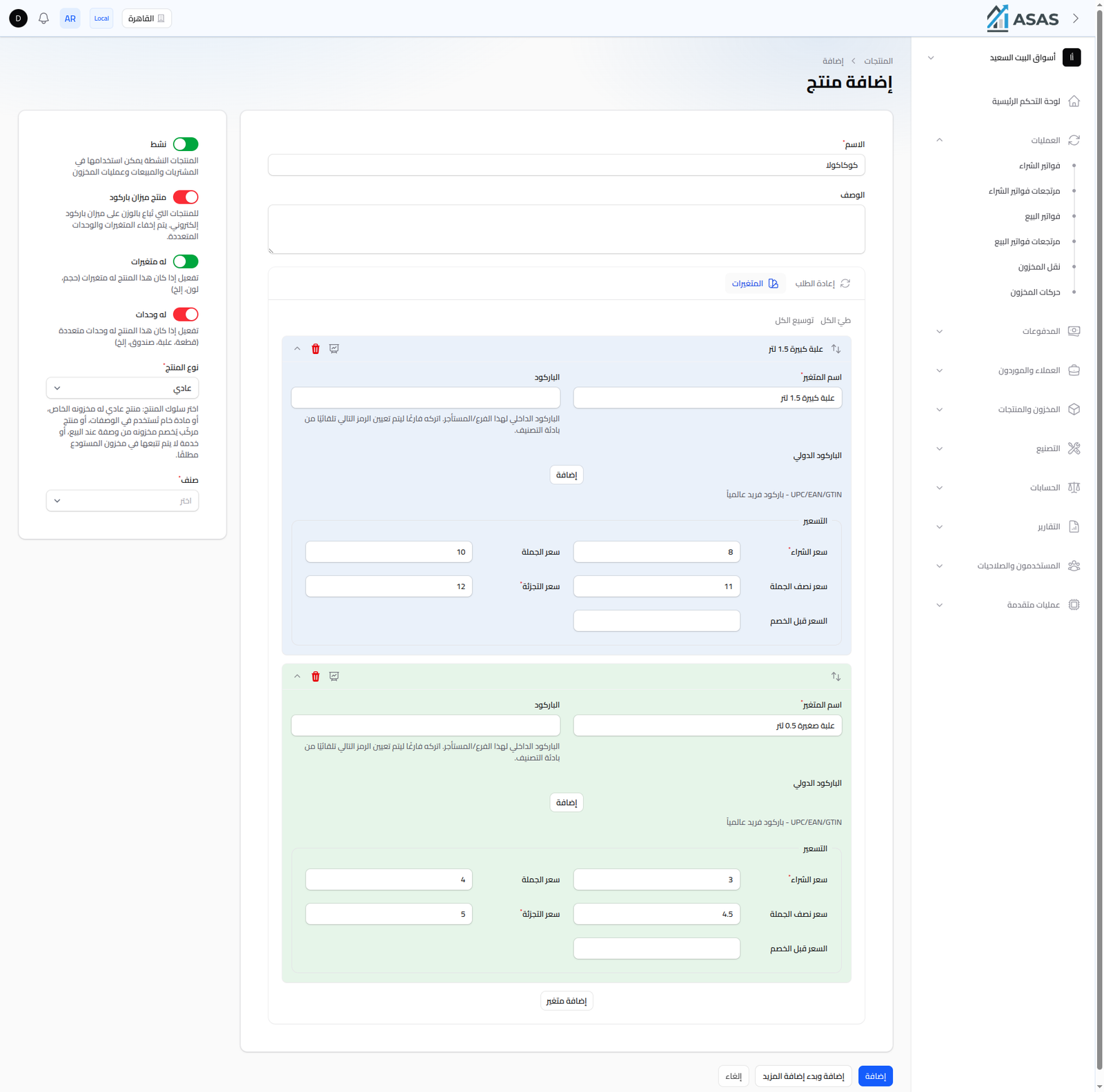
For each variant:
- Variant Name: free text describing the variant (e.g. "Large — 1.5L").
- Barcode: internal and international barcodes specific to this variant.
- Pricing for this variant (same pricing fields as above).
Click Add Variant to add another row.
5. Reorder Point
On the Reorder tab (hidden for the "Composite" and "Service" product types):
- Reorder Point: the minimum stock level before a reorder alert is triggered.
- Reorder Quantity: the suggested quantity to reorder.
6. Saving
Once the required fields are filled in, click Create to save the product, or Create & Create Another to save it and go straight into creating another one.