Printing Invoices & Receipts
After confirming payment on any sale, a confirmation dialog appears showing a live receipt preview, ready to print.
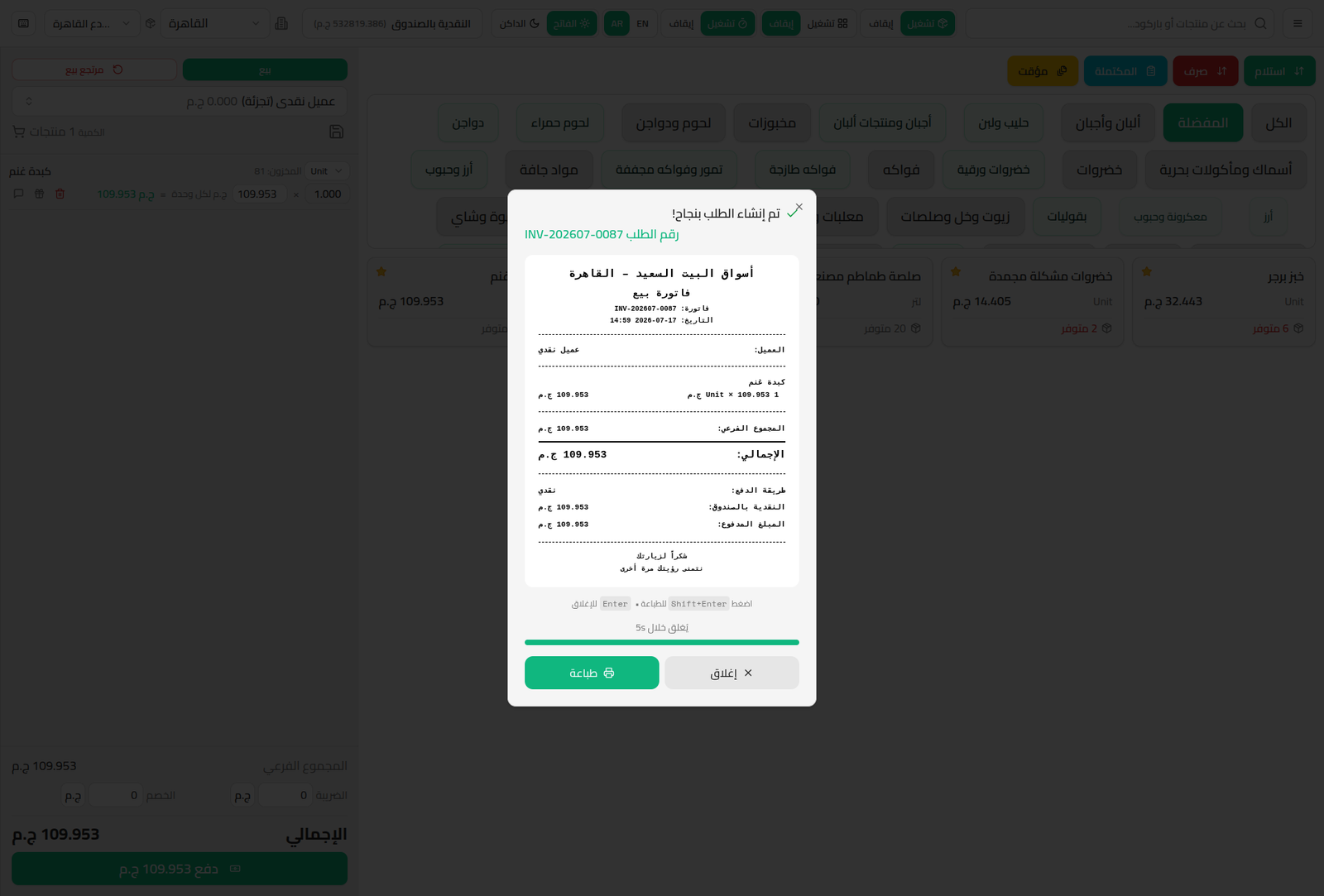
Receipt Contents
- Branch and company name, invoice number, date and time.
- Customer name.
- Invoice line items (name, quantity × price, line total).
- Subtotal and total.
- Payment method, account used, and amount paid.
- A closing message (customizable text from branch settings).
Print or Close
- Click Print (or press Enter) to send the receipt to the connected printer.
- Click Close (or Shift+Enter) to skip printing.
- The dialog closes automatically after a short countdown (5 seconds) if the cashier takes no action, to speed up serving the next customer.
Notes
- The receipt/invoice header and footer are customizable from the branch settings (see Branches).
- To reprint a past invoice, open it from Completed Invoices.