Stock Transfers
Move product quantities from one warehouse to another — whether within the same branch or between two different branches.
Go to Operations → Stock Transfers → Create.
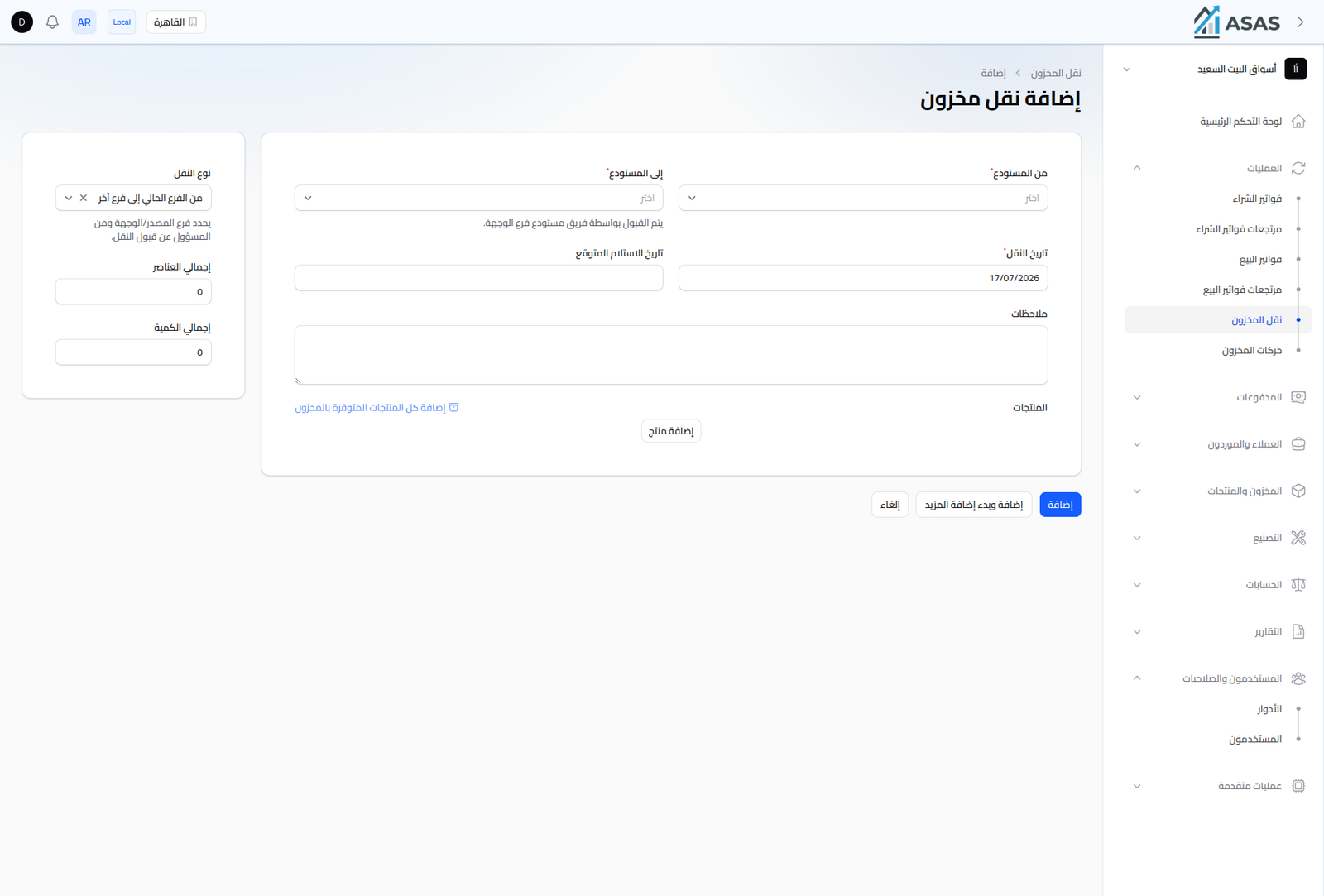
- Transfer Type: from the current branch to another branch, or an internal transfer within the same branch.
- From Warehouse / To Warehouse: the source and destination warehouse (both required).
- Transfer Date: pre-filled with today's date.
- Expected Receipt Date: optional, useful for inter-branch transfers.
- Notes: optional free text.
- Products: add products and the quantities to transfer manually via Add Product, or click Add All Products Available in Warehouse to load every item in the source warehouse at once.
- Total Items and Total Quantity: computed automatically as you add products.
For inter-branch transfers, the destination branch's warehouse team must accept the transfer before it's actually completed.
Notes
- Every transfer is logged in the Stock Movements Ledger as a "Transfer" type.
- Use this screen to redistribute excess stock from one branch to another, or to organize stock across multiple warehouses within the same branch.