Printing Barcodes
Pick products and generate barcode labels to print, with full control over what shows up on the label.
Go to Inventory & Products → Printing Barcodes.
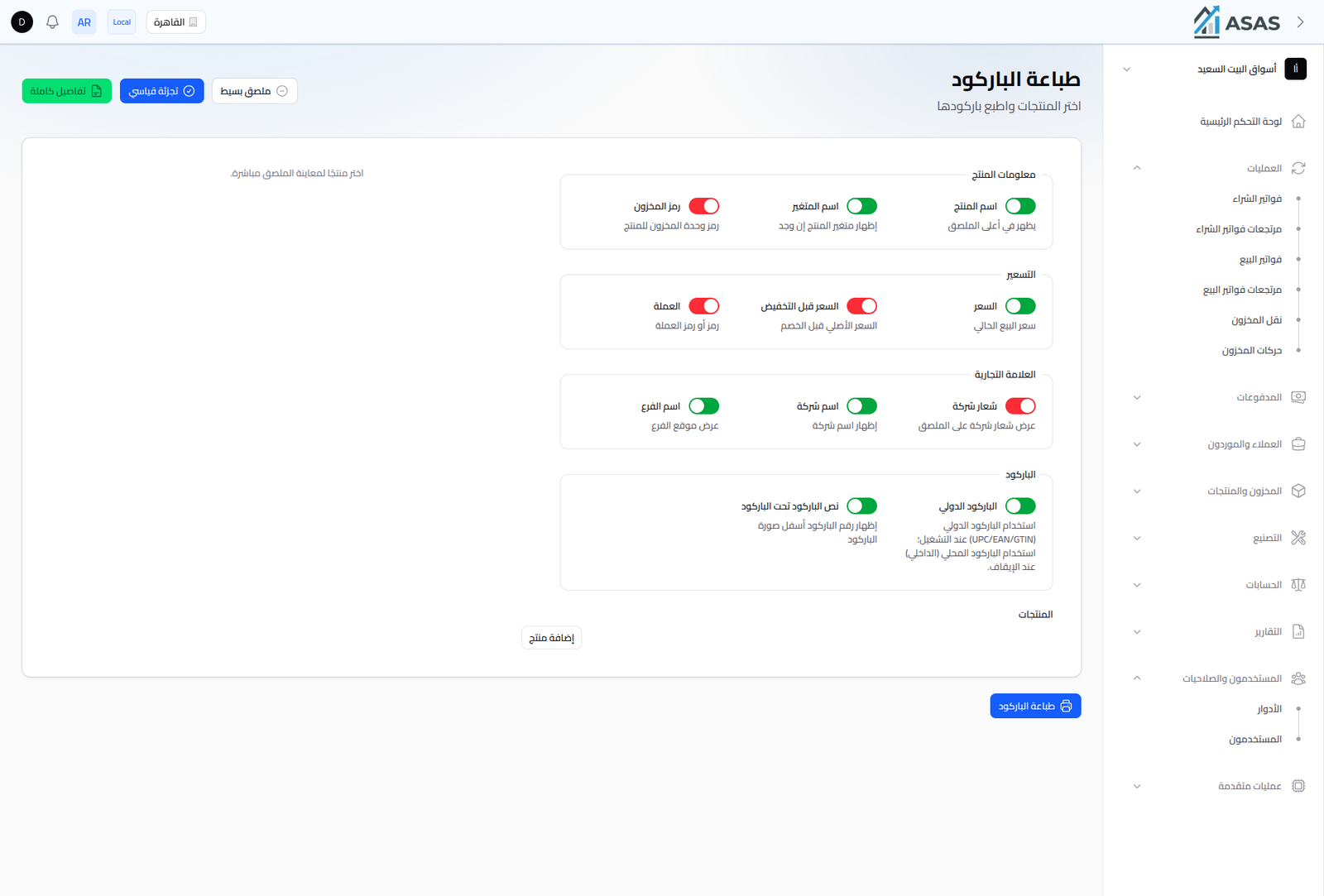
Ready-Made Templates
Three quick buttons at the top of the screen apply a ready label preset at once:
- Full Details: enables every label element.
- Standard Retail: a preset suited for retail shelf labels.
- Simple Label: minimal information (barcode and price only, for example).
Label Elements
Each element has its own on/off toggle:
| Group | Elements |
|---|---|
| Product Info | Product Name, Variant Name (if any), Stock Unit Code |
| Pricing | Price (current), Price Before Discount (original before the markdown), Currency |
| Branding | Company Logo, Company Name, Branch Name |
| Barcode | International barcode (UPC/EAN/GTIN) or internal, barcode text below the code |
A live label preview appears on the left of the screen once a product is selected.
Products
Click Add Product to pick one or more products to print labels for (you can set a copy count per product). Then click Print Barcode to send the labels to print.
Notes
- These settings are specific to this printing session and don't change the product's own data.
- To print a label for a scale product with an actual weight, use Scale-Integrated Products instead of this screen.