Held & Completed Orders
Held (Temporary) Orders
To save a current cart without completing payment (e.g. to serve another customer first), click the Save 💾 icon next to the item count above the cart, or use the Held button in the top bar to view every previously saved order:
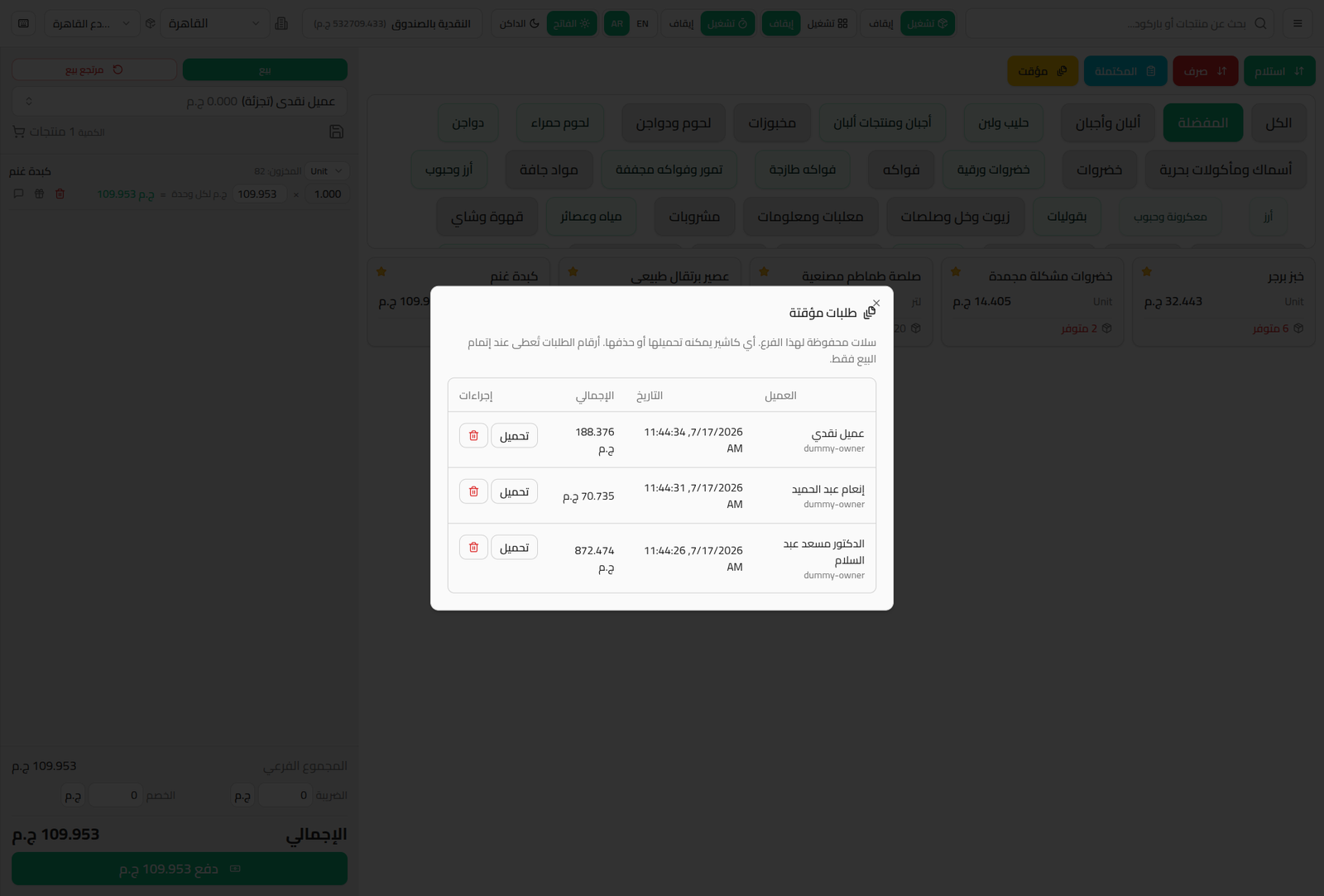
- Each row shows the Customer, Date, and Total.
- Load: reloads the order into the current cart to finish the sale.
- 🗑️ Delete: permanently removes the saved order without processing it.
Note: held orders are saved at the branch level, and any cashier at that branch can load or delete them — they aren't tied only to the cashier who saved them.
Completed Invoices
Click the Completed button to view the log of already-completed sale invoices (and returns):
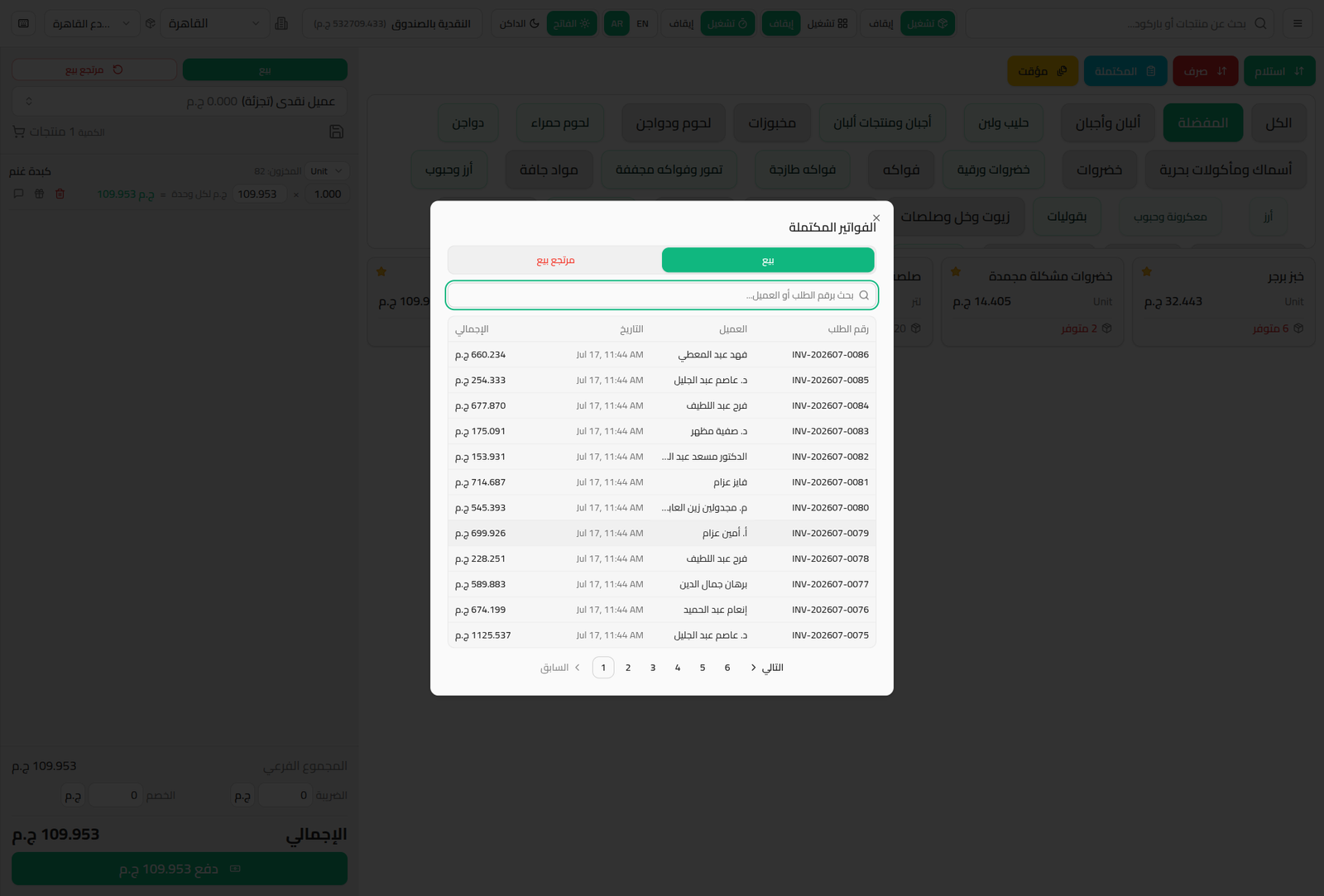
- Sale and Sales Return tabs to filter by type.
- Search field: search by order number or customer name.
- The table: order number, customer, date, total — paginated across the full history.
From this list you can open a past invoice to reprint it (see Printing Invoices & Receipts) or link a return to it (see Returns at the POS).