Printing Sales Documents
A receipt for any sale invoice or return can be printed directly from the record list or the view page, without reopening the invoice in edit mode.
Printing a Sale Invoice
From the Sale Invoices list or the invoice's view page, click the Print icon:
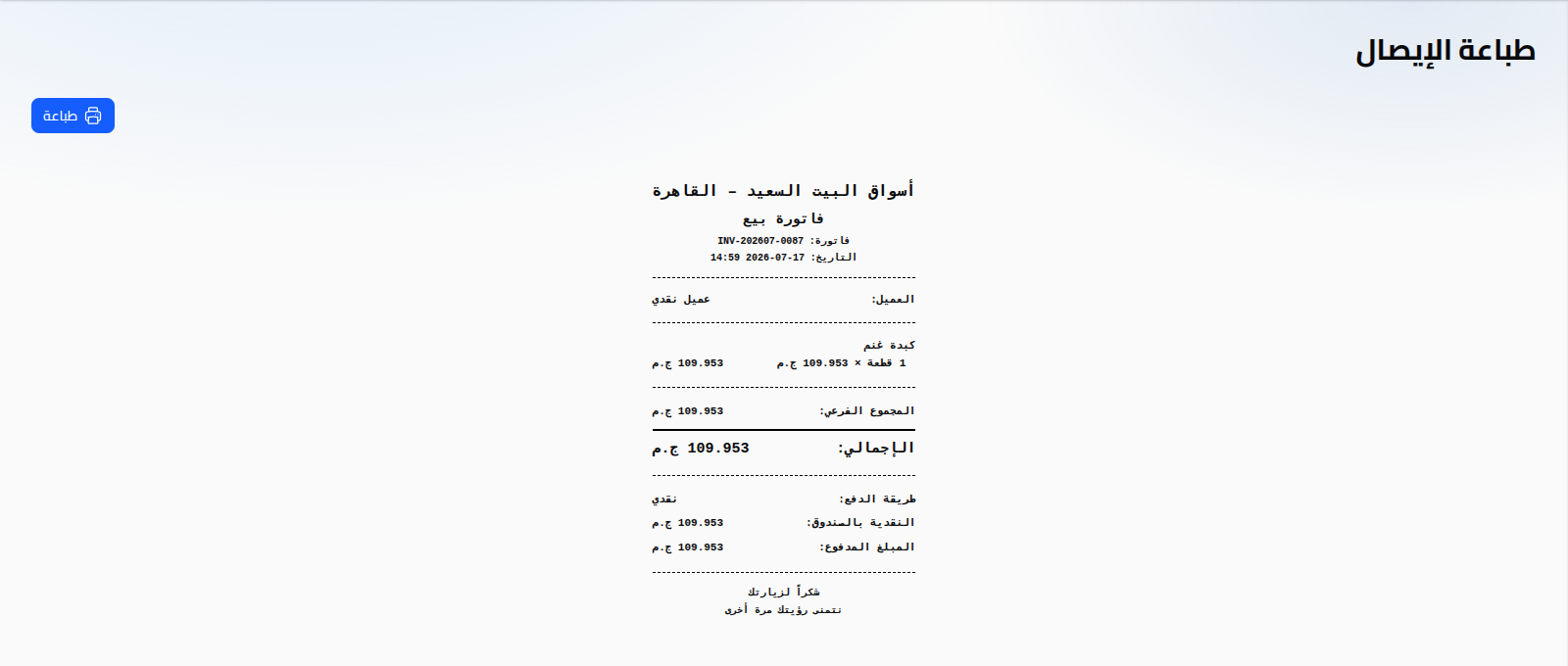
The receipt contains:
- Branch and company name, invoice number, date and time.
- Customer name.
- Each line item (name, quantity × price, line total).
- Subtotal and grand total.
- Payment method, and cash amount paid if applicable.
- A closing message.
Click the Print button at the top-left of the page to send the receipt to the connected printer (or the browser's print dialog).
Printing a Sales Return
Similarly, from the Sales Returns list or the return's view page:
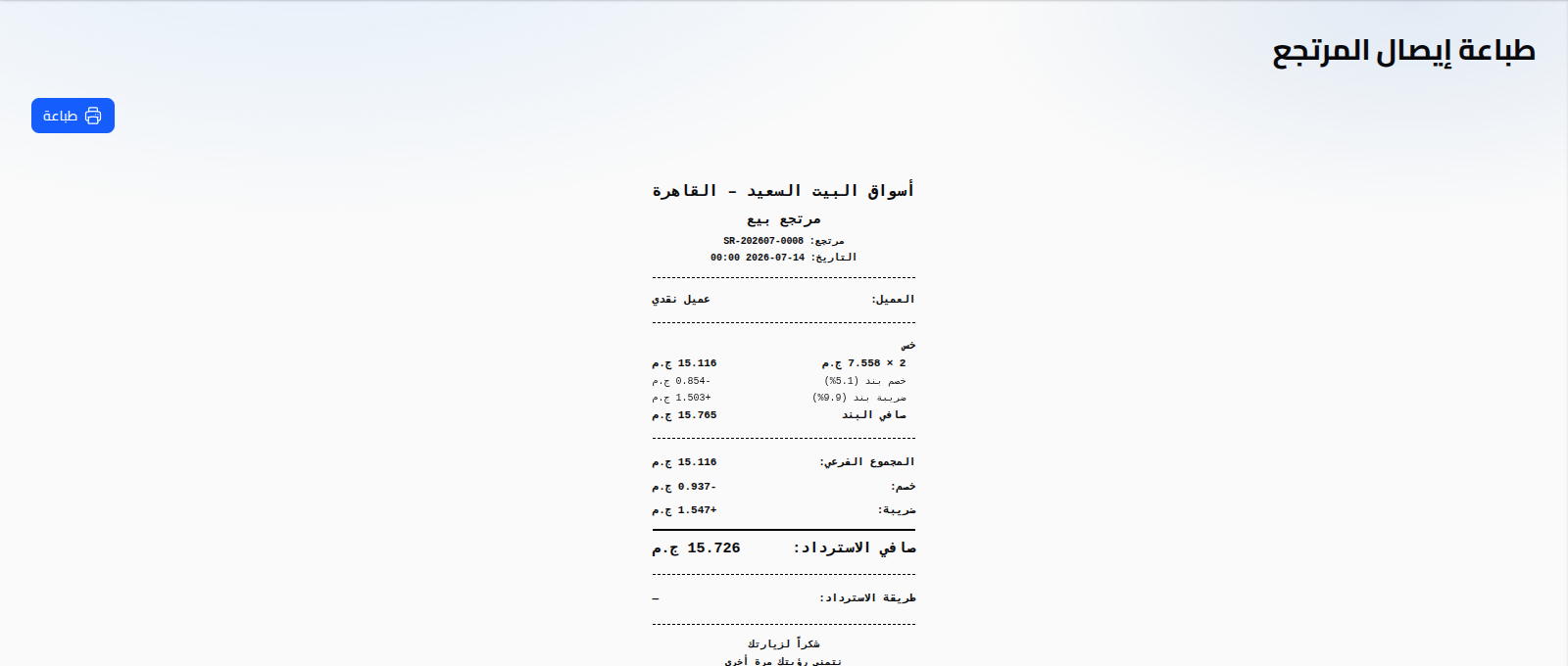
The return receipt shows details for each returned line (quantity, price, discount, tax, net line amount), then the return's totals (subtotal, discount, tax, net refund), and the refund method.
Notes
- Opening the link directly from the invoice list auto-opens the print dialog; opening the print page directly (as shown in this guide) lets you review the receipt and click Print manually.
- The receipt's header and footer (company name, closing message) are customizable from Branch Settings.