POS Basics & Layout
The POS (Point of Sale) is a separate web app optimized for fast day-to-day selling, and opens in its own tab/window away from the main admin panel.
From the dashboard, click Open POS (from the sidebar or top bar) to open the following screen:
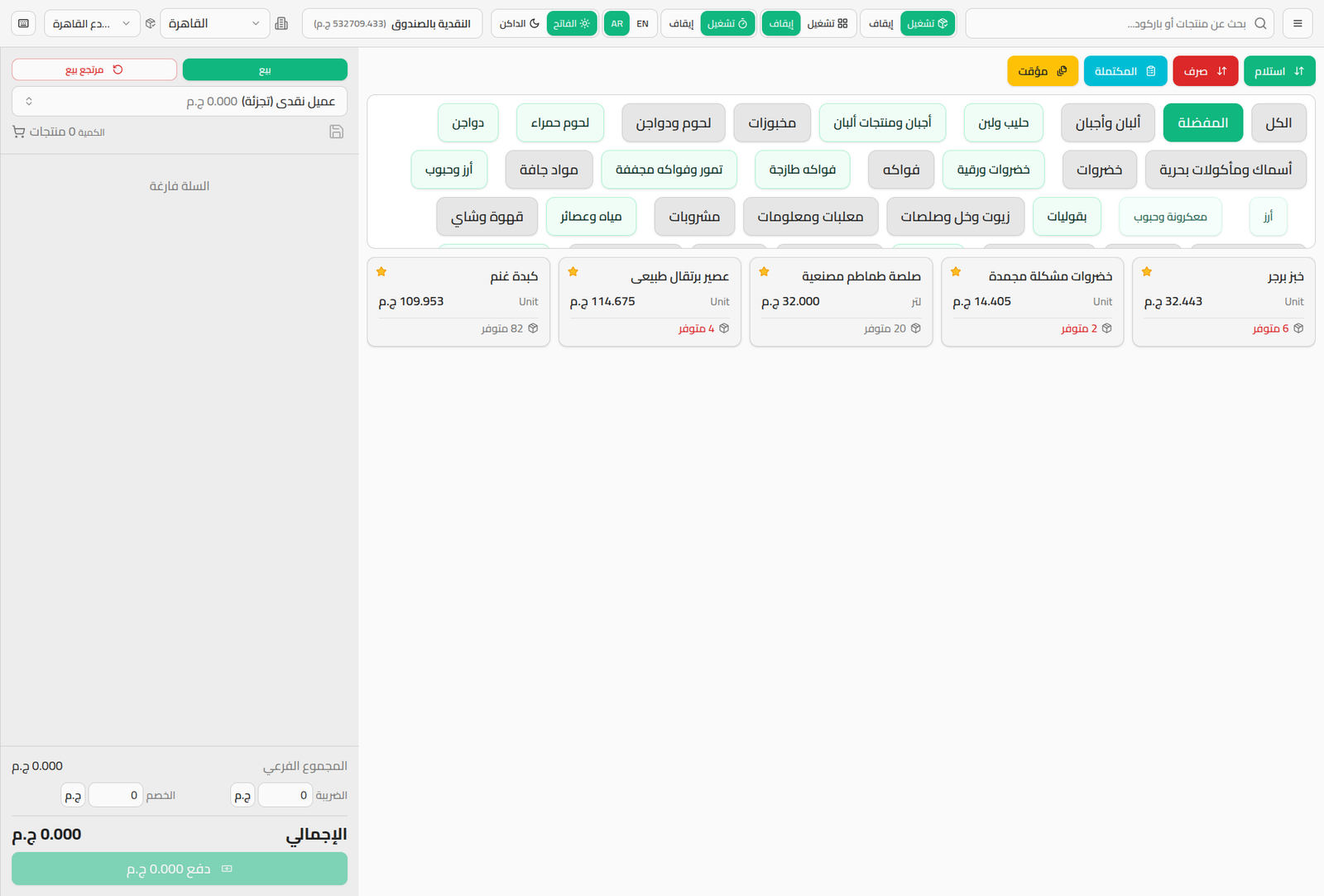
Top Bar
Right to left:
- Search field: instant search by name, or scan a product barcode directly.
- Menu button (☰): additional settings and keyboard shortcuts.
- AR / EN: switch the POS interface language.
- Colored on/off buttons: toggle quick features (dark mode, barcode-entry mode, touchscreen mode... depending on setup).
- Receive and Pay Out: record a cash movement in or out of the till directly (see Cash In/Out at the POS).
- Completed and Held: view previously completed or held orders (see Held & Completed Orders).
- Cash in Drawer: the current cash balance in the cashier's drawer for this session.
- Branch: the current branch's name.
Product Column (right side)
A scrollable grid of categories; picking one shows its products below as cards containing: product name, price, unit, and quantity available in stock. The Favorites category shows the products preselected in the branch's POS settings.
Cart Column (left side)
Shows the current customer (default "Cash Customer (Retail)"), the cart's line items, and the final total with discount/tax controls and a pay button. See Making a Sale for the full details.
Next Steps
- Making a Sale
- Keyboard Shortcuts to speed things up without the mouse