Making a Sale
1. Add Products to the Cart
Pick a category from the product column then click a product's card to add it to the cart, or scan a barcode directly via the search field at the top of the screen.
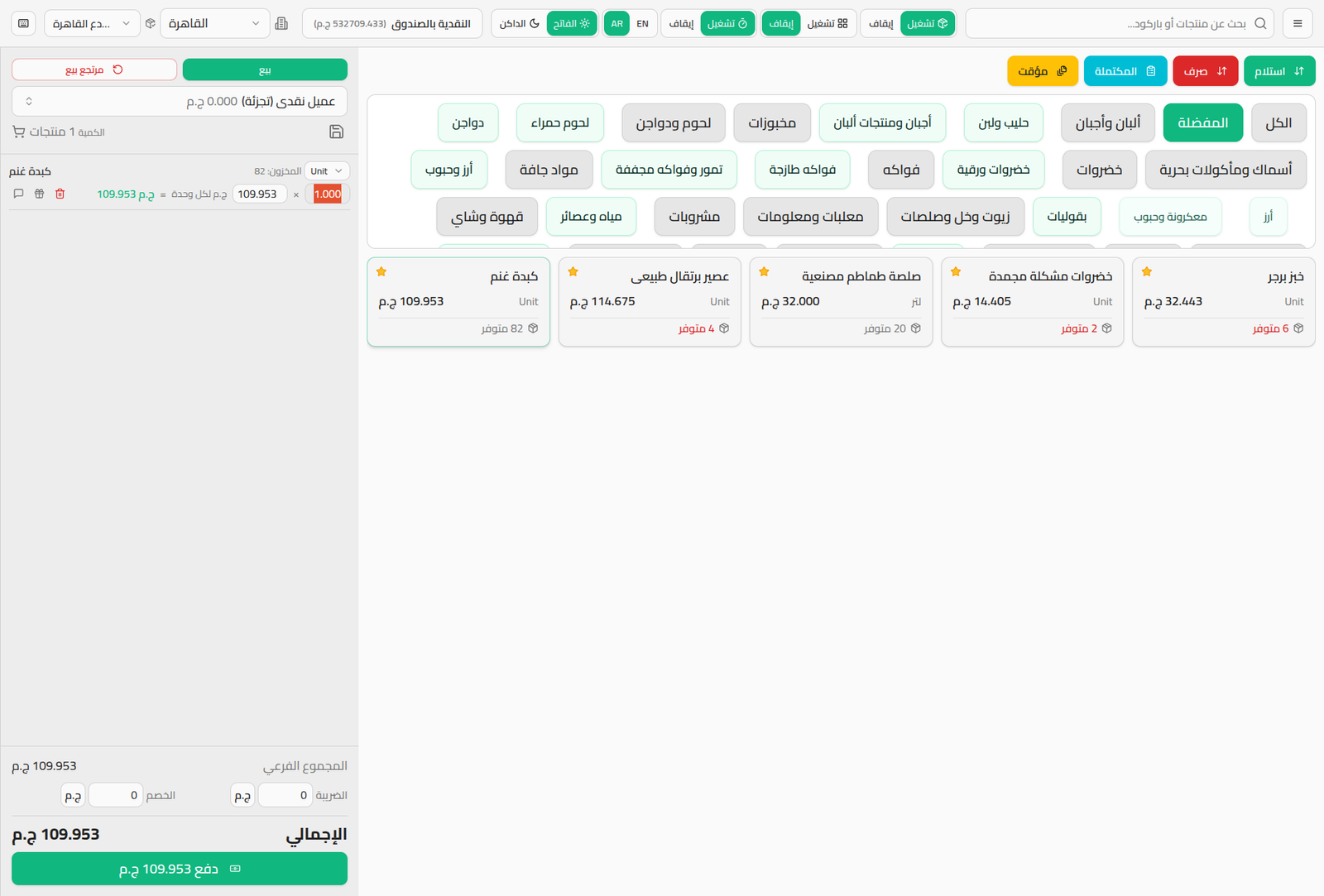
For each cart line:
- Quantity: edit it directly (the red-highlighted field shown).
- Price per unit: manually editable if your permissions allow it.
- Unit: if the product has more than one unit of measure, pick the right one from the dropdown next to its name.
- Small icons to add a note to the line, mark it as a gift, or remove it from the cart.
2. Pick a Customer (optional)
The default customer is "Cash Customer (Retail)". Click the customer field to pick a registered customer instead (required if the sale should be charged to a customer's credit balance).
3. Discount and Tax
Below the cart: Subtotal, Discount (amount or percentage), Tax, then the final Total.
4. Payment
Click Pay (or the green button at the bottom of the screen, which shows the amount directly) to open the payment dialog:
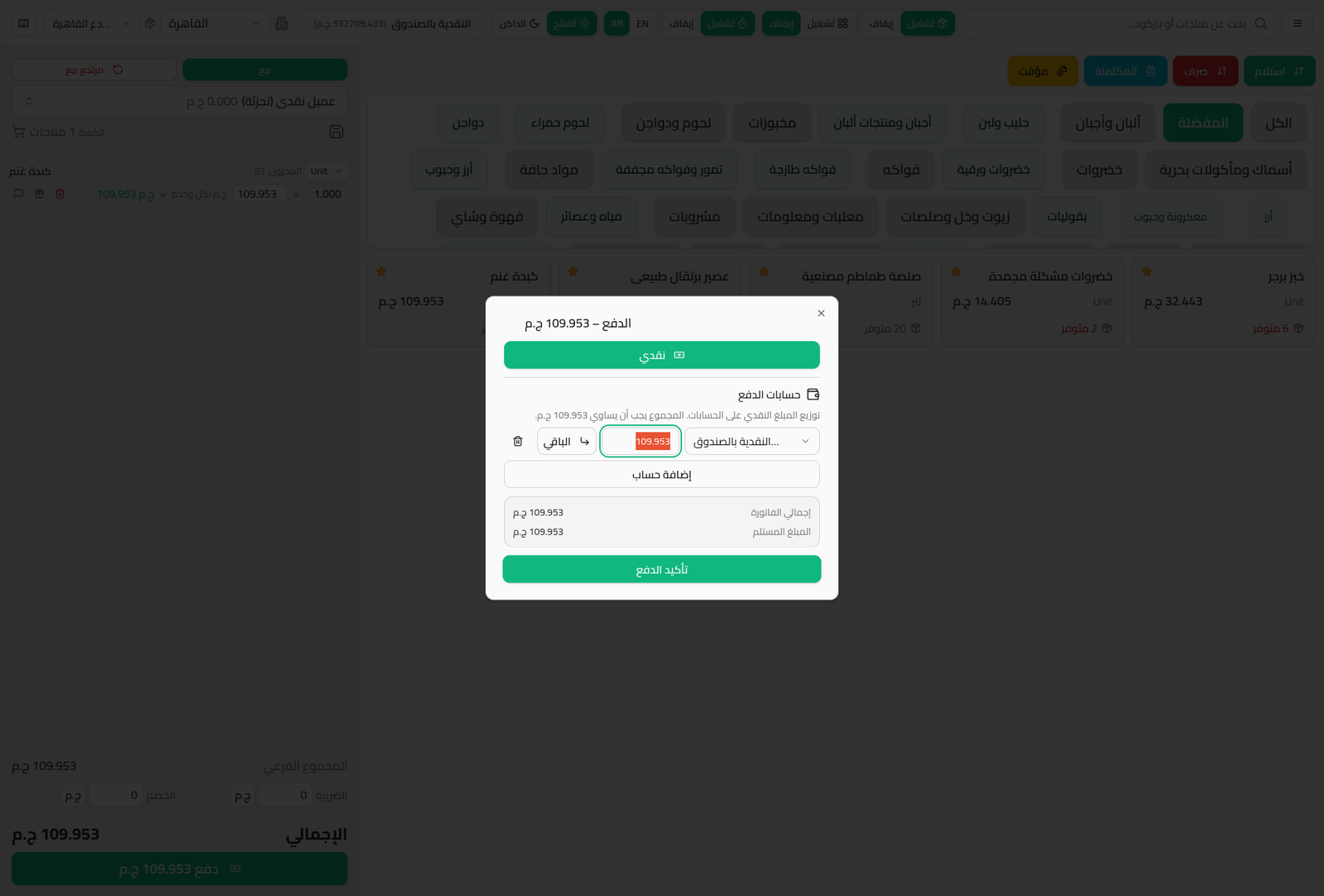
- Cash: the fastest option — assumes the full amount is paid in cash.
- Payment Accounts: the amount can be split across more than one account (cash + card, for example) via Add Account; the accounts must sum to the invoice total.
- Invoice Total and Amount Received: for review before confirming.
- Click Confirm Payment to complete the sale and deduct quantities from stock immediately.
Next Steps
- Printing Invoices & Receipts
- Returns at the POS
- Held & Completed Orders to save an order temporarily without completing payment