Navigating the Interface
After logging in, you get around the system through these fixed elements present on every screen.
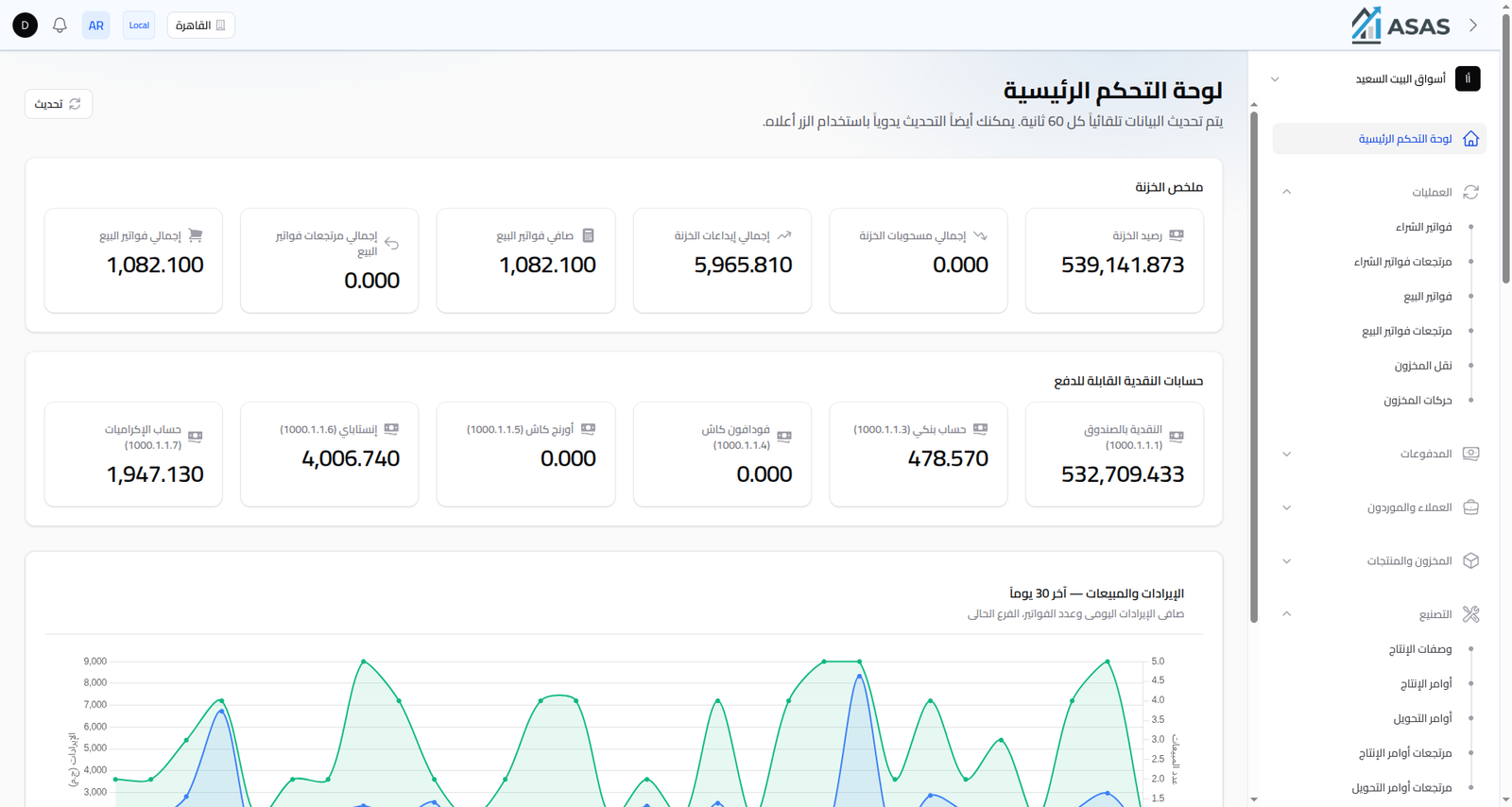
Top Bar
Left to right:
- Avatar: shows the current user's name; opens the logout menu and account settings.
- Notifications: system alerts (e.g. reorder alerts or trial-expiry warnings).
- Language (AR): switches the interface language between Arabic and English.
- Current branch: shows the active branch's name (e.g. "الفرع الرئيسي" / Main Branch), and lets you switch branches if your user has access to more than one. Everything shown (sales, stock, balances...) belongs to the currently selected branch.
- ASAS logo: takes you back to the main dashboard.
Sidebar
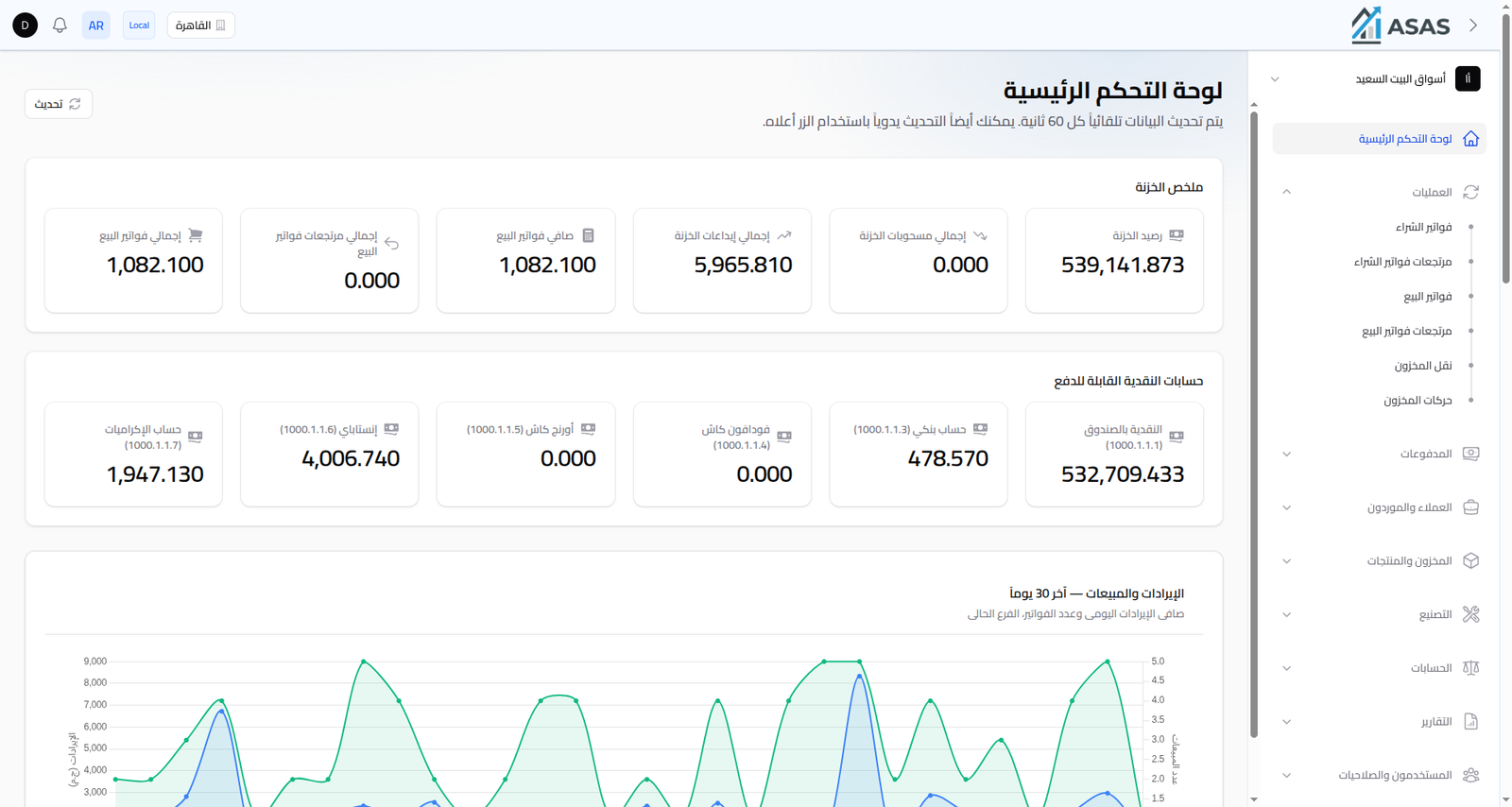
The sidebar (on the right of the screen) is split into collapsible groups, each holding related screens:
| Group | Contains |
|---|---|
| Operations | Purchase/sale invoices and their returns, stock transfers, stock movements |
| Payments | Customer, supplier, and expense payments |
| Customers & Suppliers | Customer and supplier records and their classifications |
| Inventory & Products | Products, categories, warehouses, recipes, conversion/production orders |
| Accounts | Chart of accounts, journal entries, account transfers |
| Reports | Every sales, purchase, inventory, profit, and treasury report |
| Users & Permissions | Users, roles, activity log |
| Advanced Operations | Bulk price update, inventory adjustments, barcode printing, scheduled reports |
Click a group's name to collapse or expand it; the last group you left open stays open as you move between screens.
Main Dashboard
The screen that appears right after logging in (لوحة التحكم الرئيسية / Main Dashboard in the screenshot above) gives a quick summary of the current branch's performance: total sales and returns, payable treasury account balances, and a 30-day revenue chart. Its data refreshes automatically every 60 seconds, or manually via the Refresh button.
Next Steps
- Creating a Product to start stocking your inventory.
- Branches to manage the branches available on your account.