Inventory Adjustments
Correct the system's stock balance to match the actual physical count (shrinkage, damage, count discrepancies, etc). There's no one-at-a-time manual adjustment screen — instead there are two bulk methods:
Bulk Stock Adjustment
Go to Advanced Operations → Bulk Stock Adjustment.
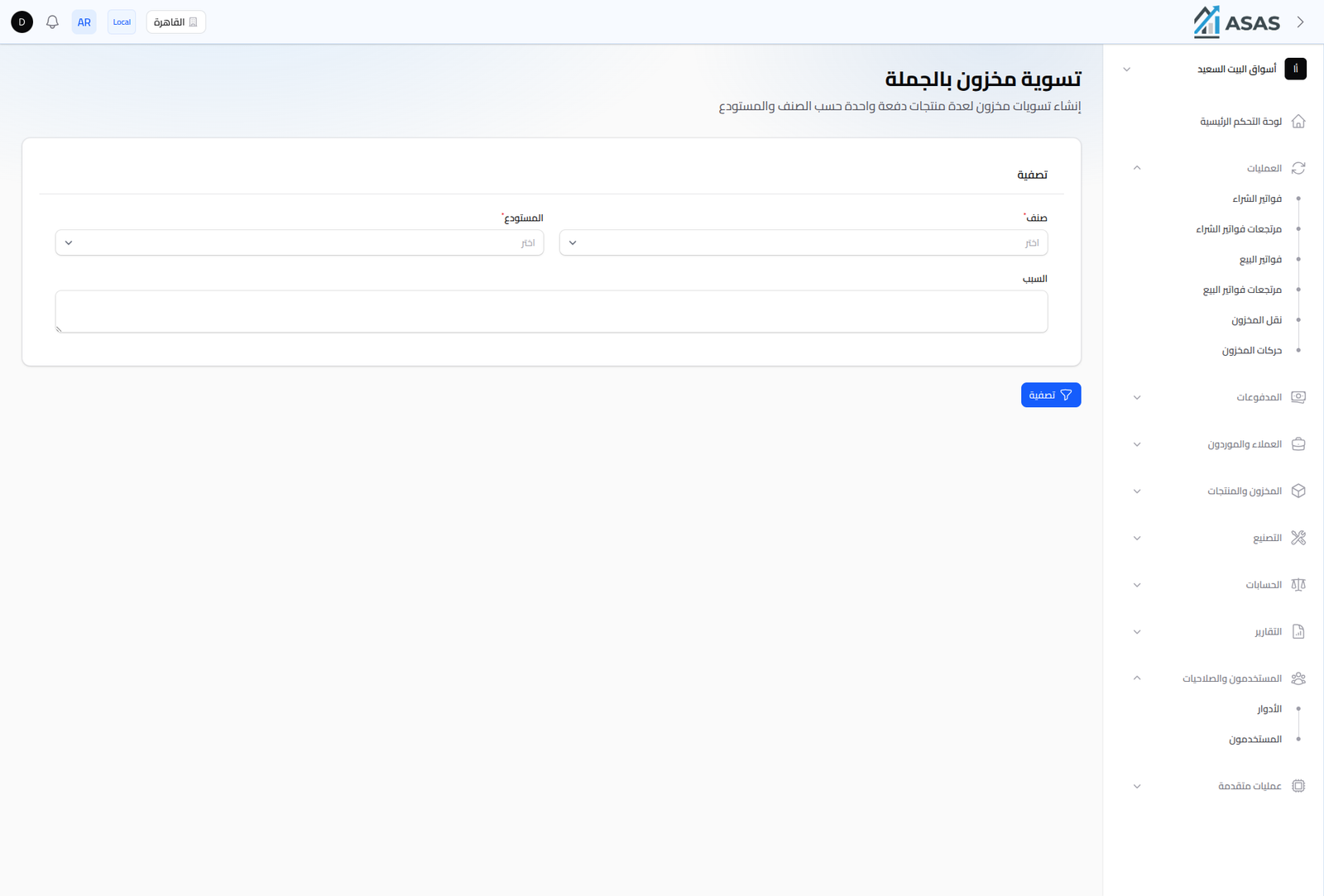
- Choose the Warehouse and the Category whose stock you want to adjust.
- Enter a Reason (optional free text).
- Click Filter to list every product in that category/warehouse at once, then enter the actual quantity for each product.
Useful for counting an entire section (like all "Dairy & Cheese") at once instead of product by product.
Scan-Based Count
Go to Advanced Operations → Scan-Based Count.
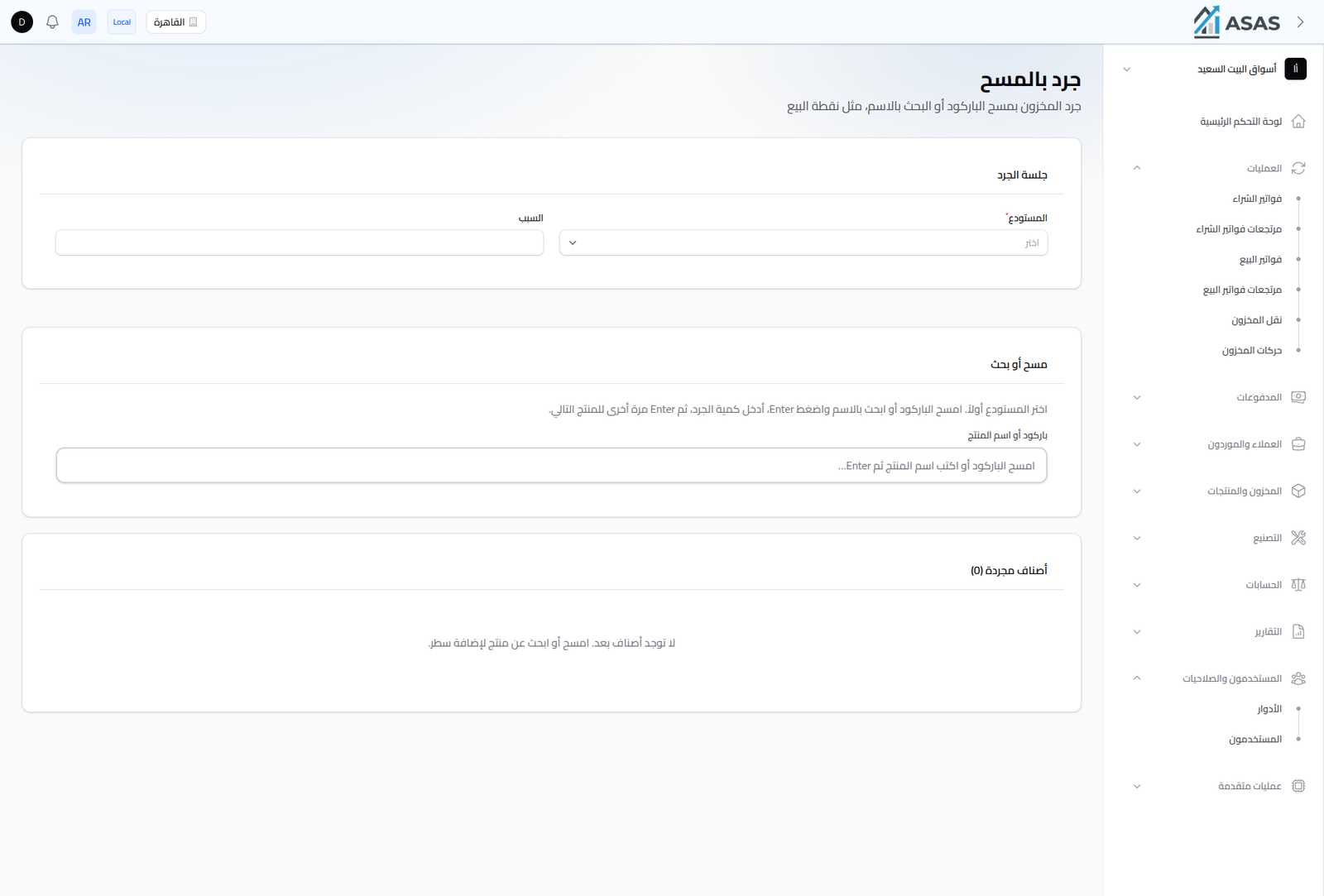
- Choose the Warehouse, and enter a Reason if you want.
- In the Barcode or Product Name field: scan the barcode with a scanner or type the product's name, then press Enter.
- Enter the actual counted quantity, then press Enter again to move to the next product.
- Scanned items accumulate in the Counted Items list at the bottom of the screen.
This method is faster for a physical, on-the-floor count with a barcode scanner, since it doesn't require opening each product individually.
Notes
- Every adjustment is logged in the Stock Movements Ledger as an "Adjustment" type, and the stock quantity updates immediately.
- Use both together: bulk adjustment when sorting discrepancies by category, scan-based count when physically counting on the warehouse floor.