Sales Returns
Record returned merchandise from customers, whether the return is linked to a specific sale invoice or is standalone.
Go to Operations → Sales Returns and click Create:
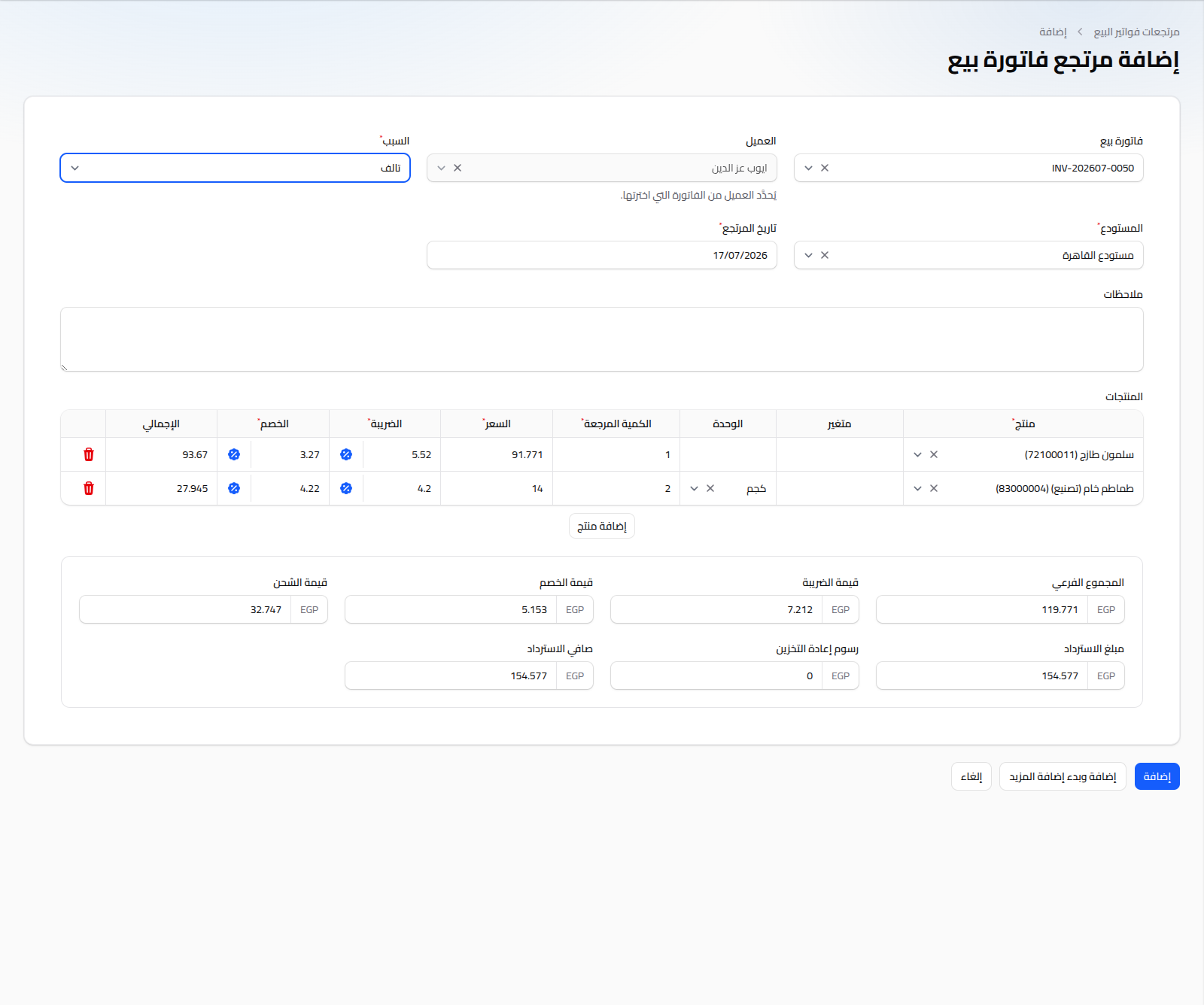
Linking a Return to an Invoice (Recommended)
Select a Sale Invoice first. Once selected:
- Customer is auto-filled from the invoice (the field locks — it can't be changed without clearing the invoice).
- Warehouse is filled from the original invoice's warehouse.
- A row is auto-added for each item on the invoice, with the returnable quantity (original quantity minus anything already returned in prior completed returns), and tax/discount rates calculated proportionally from the original invoice.
Fields
- Reason: (required) Damaged, Wrong Item, Changed Mind, Defective, Not as Described, or Other.
- Warehouse: (required) the warehouse the returned quantity is restocked into.
- Return Date: (required) defaults to today.
- Notes: optional free text.
Product Table
Same logic as the sale invoice table (product, variant, unit, price, tax/discount toggle between percentage and fixed amount), except the quantity field here is Returned Quantity. If the return is linked to an invoice, the maximum allowed price is the product's current retail price.
Below the table: subtotal, tax amount, discount amount, shipping amount, total Refund Amount, an editable Restocking Fee (deducted from the refund), and the final Net Refund.
Notes
- The returned quantity is restocked automatically once the return is completed.
- To settle the refund amount in cash or as a credit against the customer's balance, see Customer Payments.